

If you're using CXone Messaging SMS with Digital First Omnichannel, set up instructions are located with the Digital First Omnichannelonline help.
There are a number of steps you need to take to set up a CXone Messaging SMS channel for your organization.
Complete each of these tasks in the order given.
SMS Registrations

 A grouping of skills used to run reports.,
A long transport code is a dedicated 10-digit telephone number that can carry limited traffic. In some cases, long codes carry a maximum of 5 messages per second. They cost less to provision than short codes and take approximately 5-7 days to set up.
A short transport code is a 5-digit premium dedicated number service that large-scale mobile messaging campaigns or brands often use. Short codes can take 12 or more weeks to provision.
If you want to send verified SMS messages for your customers using Android devices, configure your SMS brand before you contact your CXone Account Representative about SMS registrations. They can enable this feature at the same time that they complete your SMS registrations.
Create a Campaign
If you've already created a campaign A grouping of skills used to run reports. that you plan to use with CXone Messaging SMS, you can skip this step. For example, you may have a campaign that you intend to use across several channels.
-
Click the app selector
 and select ACD.
 -
Go to Contact Settings > Campaigns.
- Click Create New to display the new campaign wizard.
- Enter a Campaign Name.
- Click Create Campaign
- Click the Skills tab.
- In the Add Skills section, select the checkboxes next to the skills Used to automate delivery of interactions based on agent skills, abilities, and knowledge you want to assign to the campaign. If you haven't created a CXone Messaging SMS skill yet, you can assign the skill to the campaign as part of creating it.
- Click Add Skills.
Create a Skill
-
Click the app selector
and select ACD. -
Go to Contact Settings > ACD Skills.
-
Click Create New > Single Skill.
-
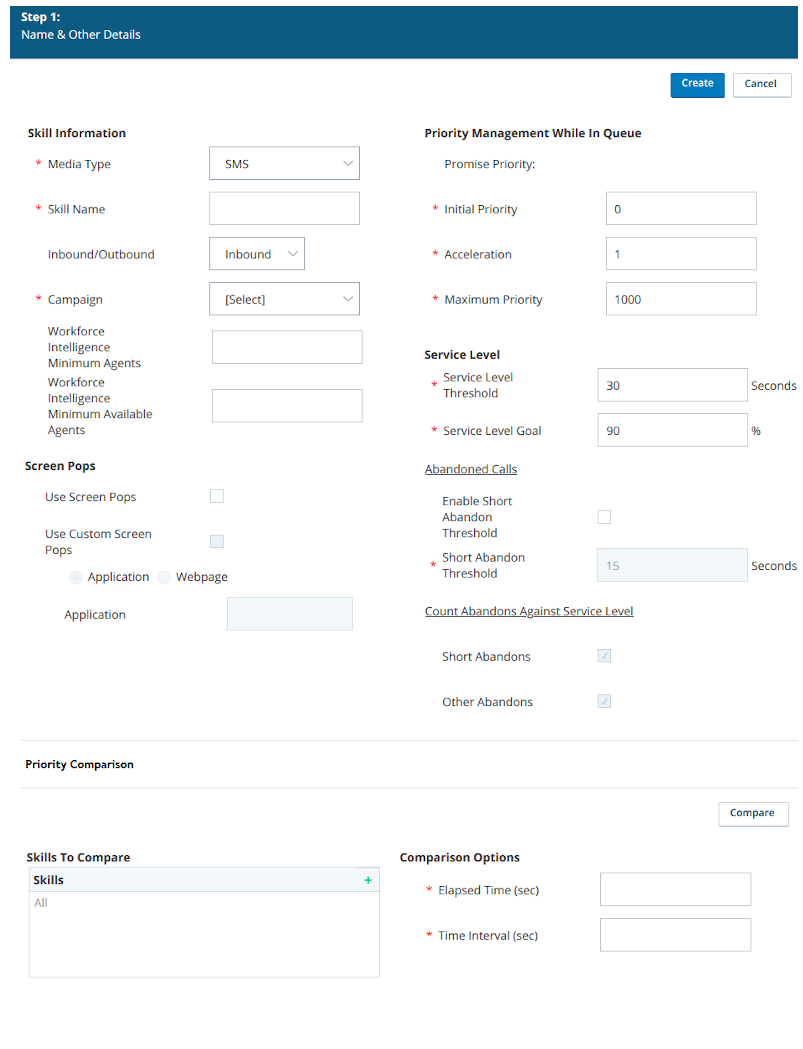
In the Skill Information section, set the Media Type to SMS. Enter a Skill Name and select the Campaign you want the skill
Used to automate delivery of interactions based on agent skills, abilities, and knowledge to be a part of. The other settings in this section are optional.Learn more about the fields in this step
Field
Details
Media Type Specifies the channel that agents with this skill use to interact with contacts. Inbound/Outbound Specifies whether the skill lets the agent accept inbound or start outbound interactions with contacts. Transferred To Script
Specifies the script that runs when an agent transfers a contact from another skill to this skill.
Re-Skill Hours of Operation Profile Allows you to select an hours of operation profile. This controls when agents can transfer a call to the skill. For example, if your accounting department closes at 4:00 in the afternoon, you could set this value for the Accounting skill to a profile with a closed time of 4:00. Agents would then not be able to transfer a call to Accounting after 4:00. Choose from the drop-down of available profiles. Workforce Intelligence Minimum Agents Specifies the minimum number of agents that must belong to this skill. This setting prevents automatic actions associated with Workforce Intelligence rules from removing too many agents from the skill. When the number of agents reaches this number or lower, all skill removal actions, even automatic ones, require approval. Workforce Intelligence Minimum Available Agents Specifies the minimum number of available agents that must be maintained for this skill. This setting prevents automatic actions associated with Workforce Intelligence rules from removing too many agents from the skill. When the number of available agents reaches this number or lower, all skill removal actions, even automatic ones, require approval. - If you want to use screen pops A configurable pop-up window with information about the contact. It appears on an agent's screen after a certain event, usually when the agent connects to a contact. for this skill, select the Use Screen Pops checkbox.
-
In the Priority Management While in Queue section, you can configure settings to control how contacts are prioritized in this skill's queue. If you're satisfied with the default settings, you can skip this step.
Learn more about fields in this step
Field
Details
Initial Priority Enter a numeric value you want to set as the base level priority Skill-based designation of the importance of contacts that determines delivery order. for all contacts in an inbound skill or for fresh records and retries in an outbound skill (callbacks Holds a customer's place in queue and automatically calls the customer when they move to the front of the queue. always take priority and are not affected by this setting). The default value is 0. Enter a numeric value to determine how quickly the priority of the skill increases. For every minute a contact stays in queue, the priority increases by the value you configure for Acceleration. The default value is 1. The minimum value is 0 and the maximum priority is the value configured in the Maximum Priority field. For example, if the Initial Priority is 4, and you set Acceleration to 1, then with each passing minute that the contact is not handled, the priority increases by one. In this example, if the contact has been in queue for three minutes, then the priority will be raised to 7.
Priority increments in seconds. For example, when Acceleration is 1, a contact's priority increases by 0.5 after 30 seconds in queue.
For Personal Connection skills, set this value to 0 because there is no queue of contacts.
You can set Initial Priority for one skill lower than another skill, but if you set Acceleration for that skill higher, it can jump spots in the queue. For example, you set Initial Priority for Skill A to 1 and Acceleration to 5. You set Initial Priority for Skill B to 3 and Acceleration to 1. Initially, a contact for Skill B will be first in queue because it has a priority of 4, but after one minute, Skill A will take its place at the top because its priority will be 6.
CXone combines the acceleration value with the time the contact has been in queue and the initial priority using the formula Overall Priority = (Time * Acceleration) + Initial Priority.
Maximum Priority Enter a numeric value to determine the maximum priority a contact can have. If you choose not to use Acceleration, this value should match the Initial Priority. The default value is 1000. Priority Initial Priority The base level setting for Personal Connection priority records, or hot records. A record is a priority record if you stored a boolean indicator in the record and mapped that field to the Priority system field to flag it as requiring priority Skill-based designation of the importance of contacts that determines delivery order. handling. Personal Connection pushes the record to the front of the queue so the next available agent can take it. The default value is 1500 to ensure that these records receive attention before normal records. Reschedule Priority The priority for calls that an agent reschedules. The default priority is 2000, which makes rescheduled calls more important than other outbound calls. -
Configure Service Level settings for the skill. If you're satisfied with the default settings, you can skip this step.
Learn more about fields in this step
Field
Details
Service Level Threshold Specifies the number of seconds agents have to respond to meet an (SLA Commitment between a service provider and a customer with a defined service level threshold, including quality, availability, and responsibilities.). For example, if your SLA for this skill is to respond to 80% of contacts within 20 seconds, enter a value of 20.Service Level Goal
Specifies a number, expressed as a percentage, of contacts who must be responded to by the Service Level Threshold in order to meet the SLA. For example, if your SLA for this skill is to respond to 80% of contacts within 20 seconds, enter a value of 80
- Click Create.
Create a Script
The following task provides a very basic outline. If you are not familiar with workflow design and scripting using Studio, you should ask your CXone representative for help in creating your script.
- In Studio, click File > New.
- In the Create New Script window, select the SMS icon. Verify that the correct Business Unit is selected and click OK.
-
Add Begin and Reqagent actions to the canvas and connect them. Inbound SMS messages automatically route to the CXone Messaging SMS skill
Used to automate delivery of interactions based on agent skills, abilities, and knowledge specified in the point of contact associated with this script. If you want to route the message to a different Messaging skill, change the value in the Skill property of the Reqagent action. -
If you want to, you can customize the script with additional actions you want to occur during messaging events, such as when the interaction begins, is transferred, or ends.
- If you configured screen pops A configurable pop-up window with information about the contact. It appears on an agent's screen after a certain event, usually when the agent connects to a contact. in the skill, configure the screen pop content.
- Click File > Save.
- In the Save Script As... window, enter a name for the script, and click Save.
Create a Point of Contact
 Learn more about fields in this task
|
Field |
Details |
|---|---|
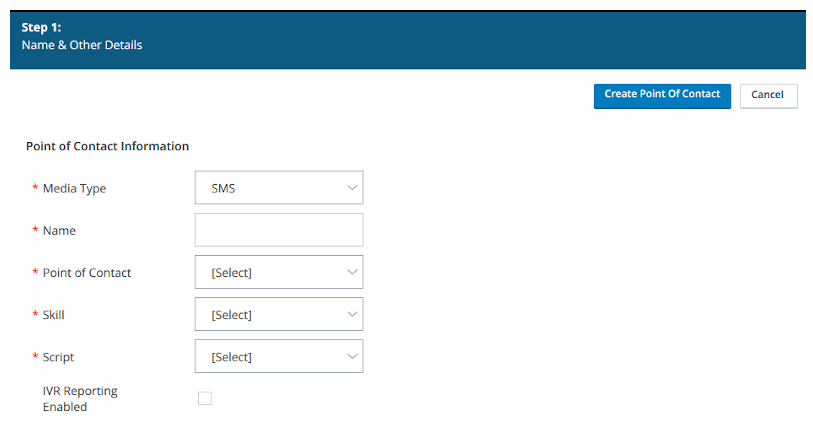
| Media Type | Specifies the channel that agents use to interact with contacts. |
|
Point of Contact |
Lets you associate the SMS registration code with this point of contact. Choose from a drop-down of the available codes in your system. You cannot associate an SMS registration with more than one point of contact. |
| Skill | Lets you associate a skill Used to automate delivery of interactions based on agent skills, abilities, and knowledge with this point of contact. Choose from a drop-down of the Messaging skills in your system. |
| Script | Lets you associate a script with this point of contact. Choose from a drop-down of the Messaging scripts in your system. |
| IVR Reporting Enabled | When you select this checkbox, interactions that come through this point of contact are included in IVR Automated phone menu that allows callers to interact through voice commands, key inputs, or both, to obtain information, route an inbound voice call, or both. reporting. |
-
Click the app selector
and select ACD. -
Go to Contact Settings > Point of Contact.
- Click Create New and select Single Point of Contact.
- For the Media Type field, select SMS.
- Enter a Name.
- Complete the remaining fields.
- Click Create Point of Contact.
Customize Your Messaging Channel
Depending on how your organization uses CXone Messaging SMS, you might also want to:
- Set up dispositions.
- Set up tagging.
- Set the maximum number of SMS and chat sessions per team, employee, or both.
- Set up verified SMS for customers using Android devices.
- Set the refusal timeout value for SMS interactions by editing the employee.