

| Channel | Type | Set Up & Details | What Agents can Do |
|---|---|---|---|
| Bring Your Own Channel (BYOC) | Messaging and Social |
|
|
Bring Your Own Channel (BYOC) lets you use a digital channel that's not yet supported by DFO. A BYOC channel allows you to use CXone APIs to create one or more custom digital Any non-voice channel, contact, or skill such as email, chat, messaging, work item, or SMS. points of contact The entry point that an inbound contact uses to initiate an interaction, such as a phone number or email address. and a corresponding digital channel. BYOC can support interactions that are inbound, outbound, or both.
Add a BYOC Channel
- Click the app selector
 and select ACD.
 -
Go to DFO > Bring Your Own Channel.
- Click Add.
- Enter all details for your BYOC Channel. Learn more about fields in this step
Field Details Name The name for your channel integration. Integration box URL
The URL to be used for HTTPS message callbacks from CXone. Message callbacks notify your server of a message event, like message received or message delivered.
This destination must be accessible from public internet.
Add action URL The URL for the page you created to add a channel. You create this page on your own, outside of CXone. This page must have the Channel API built in. You can choose to build a user-friendly UI for this page, but it is not required.
Reconnect action URL The URL for the page you created to reconnect an existing channel if it has been disconnected.
This can be the same as Add action URL, if you only have one page to point to.
Remove action URL The URL for the page you created to delete a channel.
This can be the same as Add action URL, if you only have one page to point to.
Client ID
Client Secret
Used to provide an oAuth authorization for message callbacks to your integration. You need to generate this yourself.
Color The color of the button displayed on the Points of Contact Digital page in CXone. Icon The icon on the button displayed on the Points of Contact Digital page in CXone. This icon is also used in the agent UI. - Click Save. Make a note of the Integration ID. You will need this in a later step.
-
Go to DFO > Points of Contact Digital. Click the button for the channel you just created.
-
You are redirected to the URL you entered in the Add action URL field. If you chose to build out a user-friendly UI, you can complete a form that calls the Channel API to create a Digital Point of Contact. Otherwise, you can call the Channel API directly.
View example
copyExample Channel API callPOST /dfo/3.0/channels
{
"id": "cd7d9728-5c64-433f-b49b-8924c97c2aa6",
"idOnExternalPlatform": "myOwnId45678",
"channelIntegrationId": "YOUR INTEGRATION ID",
"realExternalPlatformId": "forum",
"name": "My discussion forum",
"isPrivate": true,
"hasTreeStructure": false
}Once the channel is created, find and make a note of the Channel Integration ID. You will need it later.
-
Create messages using the Message API.
View example
copyExample Message API call
POST /dfo/3.0/channels/YOUR CHANNEL ID/messages
{
   "idOnExternalPlatform":"comment-300001",
   "thread":{
      "idOnExternalPlatform":"thread-1001"
   },
   "messageContent":{
      "type":"TEXT",
      "payload":{
         "text":"Hello, can you help me, please?"
      }
   },
   "createdAtWithMilliseconds":"2021-01-15T03:20:50.52-04:00",
   "direction":"inbound",
   "authorEndUserIdentity":{
      "idOnExternalPlatform":"5459",
      "firstName":"Peter",
      "lastName":"Solo",
      "nickname":"@peter007"
   }
}
Configure Permissions
You need to add this channel A way for contacts and agents to interact, such as voice, email, chat, social media, and so on. to each role that will use the channel. When you add a channel to a role, you need to configure permissions. This determine what users assigned to the role can do when interacting with the channel.
You can add this channel to existing roles or create a role in the CXone Admin application specifically for this channel. Digital First Omnichannel users can only have one role.
If you create a new role for this channel, be sure to include any necessary permissions from the Digital Engagement list on the Permissions tab in the CXone Admin application. When you save the new role, it appears in the ACD > DFO > Roles list, where you can add channels and permissions, as well as assign the role to digital agents An agent who handles digital interactions, such as those on email, chat, social, messaging, and SMS channels. .
Be sure to add the Reply permission for all roles that need to interact with customers. Without this permission, users with the role can't reply to interactions.
- Click the app selector and select ACD.
-
Go to DFO > Roles.
- Click the Edit icon for the role you want to use.
- In the Channels section, locate the channel you want to configure permissions for and click Edit permissions.
-
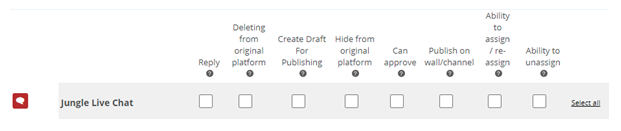
Select the checkboxes in the channel's row for each permission you want to add to the selected role.
Learn more about channel permissions
Depending on how Digital First Omnichannel is configured, some permissions may not be available.
Permission
Details
Reply
When selected, users can write replies that are published Posting directly to a social media wall, feed, or account. on behalf of the channel. Users without this permission can write drafts of messages. The drafts must be approved before they can be sent or published. Deleting from original platform When selected, users can delete a message or post A social media post that can result in multiple threads from various contacts. from its original platform (for example, from Facebook or Twitter). Hide from original platform When selected, users can hide a message or post on its original platform (for example, Facebook or Twitter). Can approve When selected, users can approve drafts of replies written by other users. Ability to assign/re-assign When selected, users can assign or re-assign any conversation to themselves or other users. Ability to unassign When selected, users can unassign a conversation from themselves or other users. - Click Save. Continue adding permissions for other channels, as needed.
Configure Routing and Queues
You need to define how Digital First Omnichannel routes messages that come in through this channel A way for contacts and agents to interact, such as voice, email, chat, social media, and so on.. You can modify the filters for existing routing queues The system uses routing queues to determine which agents to route cases to. Your system administrator creates routing queues so that certain cases are routed to agents with expertise in that type of case. to also route for this channel. You can also create new queues for the channel. Routing queues in Digital First Omnichannel are similar to skills Used to automate delivery of interactions based on agent skills, abilities, and knowledge in CXone.
- Click the app selector and select ACD.
-
Go to DFO > Routing Queues.
- In the table, locate the routing queue you want to work on and click Filters.
- Locate the filter you want to use and click Edit. You can also add a new filter.
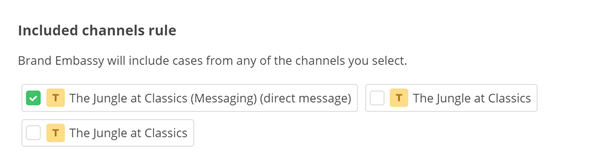
- In the Included channels rule section, select the checkbox for the channel.
- Click Save.
Configure Service Level Agreement (SLA)
SLAs help you track how effective your agents are in managing their cases An interaction with one contact about one topic that can consist of many inbound and outbound messages.. Digital First Omnichannel lets you configure SLAs globally and per channel. The speed of communication can vary widely from channel to channel, so you might want different SLAs for channels with slower communication speed. For example, a live chat Agents and contacts interact on a real-time basis takes place in real time, but an email or SMS conversation may take days of back-and-forth between the agent and the customer.
SLAs are only calculated during the business hours that you configure in the Digital First Omnichannel admin portal.
Agents can see the current SLAs for a case display when they click in the reply field.
If you want to configure an SLA for this channel, complete this task. Otherwise, you can skip it.
- Click the app selector and select ACD.
-
Go to DFO > SLA.
- Locate the channel you want to configure and click Edit.
-
Use the drop-downs to set the number of days, hours, and minutes to set the First Response Time and Solution Time for this channel.
Learn more about these metrics
Field
Details
First Response Time (FRT) FRT starts counting the second a customer creates a request (for example, sends you a message or comments on a post) and runs until an agent replies. Solution Time (ST)
ST is the total amount of time it takes to resolve a case. It starts at the same time as FRT, and runs until the case is marked Resolved by an agent. In reports, ST is sometimes referred to as RT
Resolution time, sometimes called solution time. - Click Save.