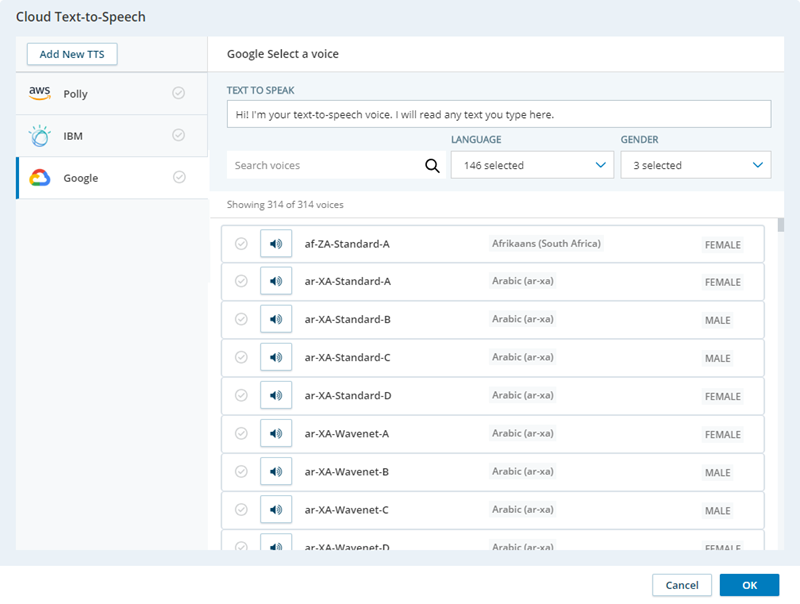
Cloud TTS Service is managed with Studio scripts.
Add a New TTS Provider
You can assign one provider to multiple TTSVOICE actions in the same script, or in different scripts. Each action can use a different voice,
- In Studio, open or create a script.
- In the Tools tab, locate the TTSVOICE action and add it to the appropriate location in your script.
- Double-click the TTSVOICE action to open the Cloud Text-to-Speech page.
-
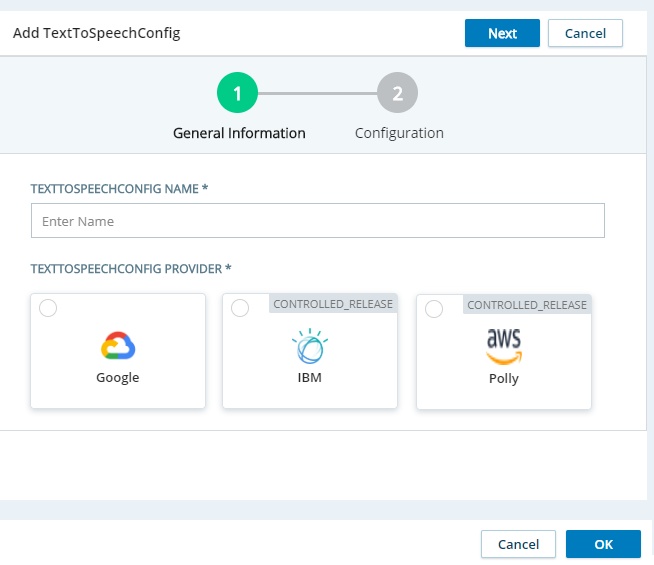
Click Add New TTS.
- Enter a name for this provider in the Text to Speech Config Name field. This is the name that goes in the vendor property for the TTSVOICE action when you want to use this provider.
- Click the Text to Speech Config Provider that you're using.
- Click Next.
-
Complete the Configuration page with the information required to authenticate your account with the TTS provider you chose. This information is different for each provider.
 Learn more about fields in this step
Provider Required Information AWS Polly TTS Access Key—Enter your AWS Polly access key.
Secret Key—Enter the secret key for your AWS Polly account.
Region—Enter the region for your AWS Polly. For example, us-east-2.
Google TTS Base64 Service Account—Enter the ID for your service account in base 64 format. The description under this field on the Configuration page includes a link to a converter you can use to convert your ID to base 64. IBM Watson TTS
API Key—Enter the API key for your IBM Watson account.
Version—Enter the version of IBM Watson you're using.
Service URL—Enter the URL your IBM Watson service. This URL is based on the location of your IBM Watson service. For example, https://api.us-south.text-to-speech.watson.cloud.ibm.com.
- Click Add.
Assign Cloud TTS Service to an Action
- In Studio, open the script you're working with.
- If you haven't already added the TTSVOICE action to your script, do so now.
- Double-click the TTSVOICE action to open the Cloud Text-to-Speech page.
- Click to select a TTS provider from the list on the left side of the page.
-
Scroll through the list of voices and select the language and voice that you want this action to use.
- Test the selected voice by entering text in the Text to Speak field and clicking the speaker icon next to the voice you're testing.
- When you are satisfied with the voice you've chosen, click OK to save your selection to the action's properties.