

Content on this page is for a product or feature in controlled release (CR). If you are not part of the CR group and would like more information, contact your CXone Account Representative.
Bot Builder allows you to import or export certain data about your bot.
Use cases for import functionality:
- Migrate from another bot building platform
- Add your own NLU
 This process expands on Natural Language Processing (NLP) to make decisions or take action based on what it understands. data sets
Use cases for export functionality:
- Duplicate or backup the bot in the same account
- Copy the bot into a different account
- Export past conversations to run analytics in a third-party tool
Import and export functionality is located in Preferences  and can be used with training data, conversations, or full bot configuration.
Training Data
| Import | Export | File Types |
|---|---|---|

|
|
XSLX |
- In the Digital First Omnichannel portal, click Chatbot.
- Click the bot you want to work with.
- Click Preferences in the left icon menu.
- On the Import & Export tab, click Training Data.
- To import:
- Click Browse Files, then locate the file you need.
- Use the drop-down to select whether you want to Merge the new file with your current data or completely Overwrite your current data.
- Click Import.
- In the History section, you can view logs detailing each past import.
- To export, click Export to .XSLX.
Conversations
| Import | Export | File Types |
|---|---|---|

|
|
JSON via REST API |
You can export conversation data in JSON through a REST API. This allows you to put your past conversations through analytics or other third-party processes, then return and make improvements to your bot.
- In the Digital First Omnichannel portal, click Chatbot.
- Click the bot you want to work with.
- Click Preferences in the left icon menu.
- On the Import & Export tab, click Conversations.
-
In a separate browser tab, open the Get Conversations API documentation. This is where you can get an example API request to modify for your own use.
-
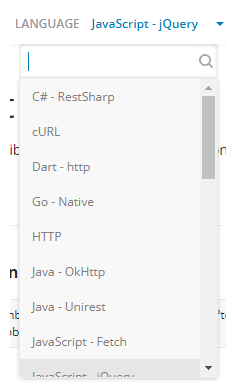
Select the language you're writing in from the Language drop-down.
-
Click Copy
 in the Example Request window.
 -
Paste the example request into your code.
-
Go back to the Bot Builder tab and copy the Token.
-
Paste the token into your code to replace "YOUR TOKEN HERE" in the example request.
Bot Configuration
| Import | Export | File Types |
|---|---|---|
|
|
|
YAML |
Importing a bot can help with bot duplication or migrating to a different account or tenant. Exporting a bot allows it to be used as a backup. If using as a backup, you should export on a regular basis to keep it up-to-date.
You can import a bot from the same page where you create a new bot.
To export your bot:
- In the Digital First Omnichannel portal, click Chatbot.
- Click the bot you want to work with.
- Click Preferences in the left icon menu.
- On the Import & Export tab, click Bot Configuration.
- Click Export to .yaml.