

Manage Transcription Profiles
Working with Cloud Transcription profiles requires CXone Studio, which you can download and install on your system. You can create a new voice script to use for the tasks in this topic. You don't need to use a pre-existing script. There's no need to save the script when you are done.
- In Studio, open or create a script.
- In the Tools tab, locate the Cloud Transcribe action and add it to the script workspace.
- Double-click the Cloud Transcribe action to open the Transcription Profiles page.
-
Click Add New Transcription Profile.
- Enter a Transcription Profile Name. To differentiate this profile from your other profiles, use a name that highlights what makes this profile different. For example, you could name the profile for its intended use, the provider, or the language of the profile
- Click the Transcription Profile Provider that you want to use.
- Click Next.
- Select the Language for this profile.
- Click Add.
 View image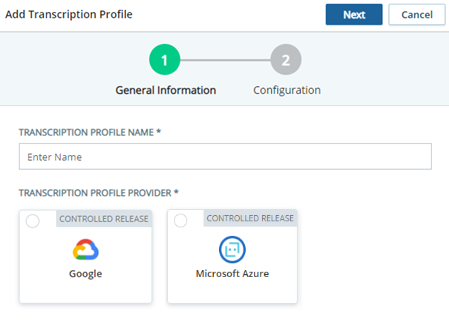
Test a Transcription Profile
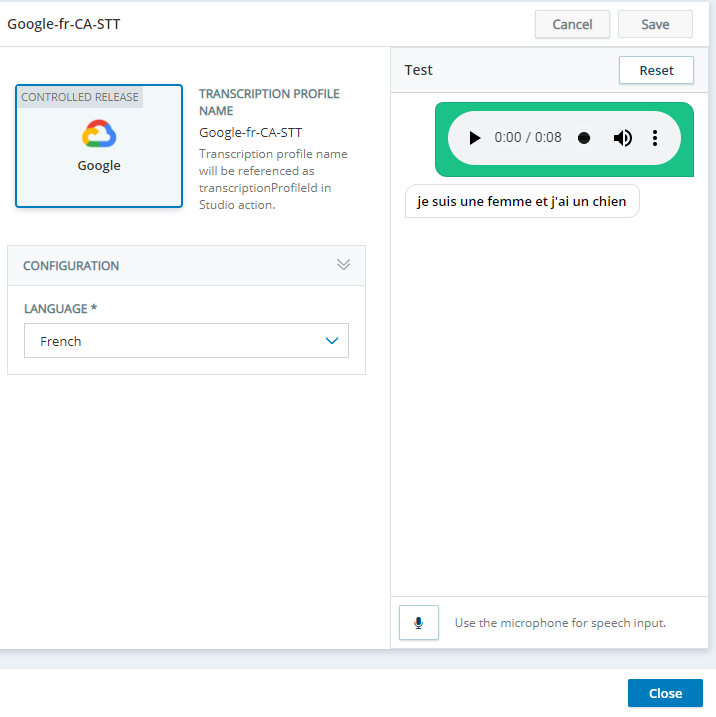
You can test a transcription profile to verify your selections. To test a profile, you must use a computer with a microphone.
- In Studio, open or create a script.
- In the Tools tab, locate the Cloud Transcribe action and add it to the script workspace.
- Double-click the Cloud Transcribe action to open the Transcription Profiles page.
- Select the transcription profile you want to test.
-
Under Test, click the microphone icon and speak in the language you're testing. When you are done speaking, click the square stop icon. Cloud Transcription automatically transcribes the words you spoke and displays the results under Test.
- Repeat the test as often as you need to. You can change languages if you want to. When you are finished, ensure that the Language selected is the one you want the profile to use.
- Click Save.
Assign a Transcription Profile to an Action
You can assign a transcription profile to the Cloud Transcribe action from the Transcription Profiles page.
- In Studio, open the script you are working with.
- If the Cloud Transcribe action isn't already in the script, add it to the correct location and ensure that it's properly configured.
- Double-click the Cloud Transcribe action to open the Transcription Profiles page.
- Locate the transcription profile you want to use.
- Click the selection icon
 next to the profile name
 - Click Yes.