

Allows you to build custom reports similar to ACD Reporting. This module also allows for viewing more in-depth data, down to the contact-detail level. These reporting sets can be created for ACD data, all CXone suite data, and also for data from a 3rd party. The sets can be viewed as modules on a dashboard, exported to various file types, and set up on a schedule. You can use multiple modules to display different types of reports and edit the display name on the dashboard to match the appropriate set being displayed. Your access to this module, metric data, and reporting sets may be limited depending on your permissions; see the Manage Reporting Metrics page for more information on managing data displayed by this module. You must set up metrics and reporting sets on the Pipeline Config page before displaying and running reports through this module.
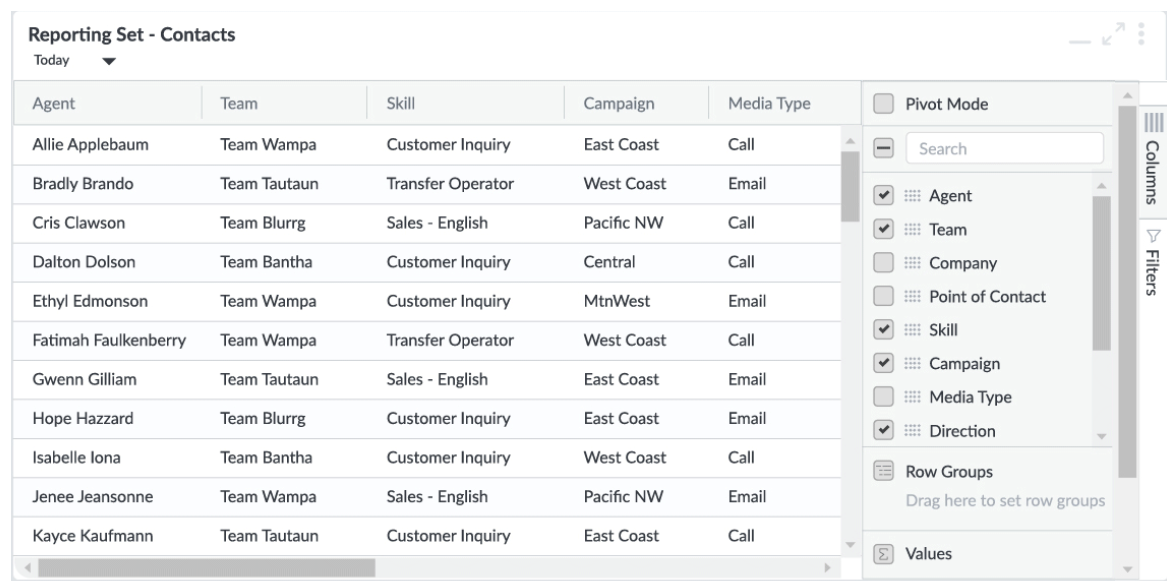
The Filters and Columns features allow you to customize which data from the reporting set is displayed in the module, allowing more flexible and granular insight into the report. You can select which columns to display or filter by specific metrics. Pivot mode creates a pivot table within the module. A pivot table allows you to view column data as a row group, making it easier to view totals and extract aggregated data from the table. You can only display a pivot table when the Columns menu is enabled, then drag and drop columns into the Row Groups field to display the data. In the table, expanding the rows drills down into more detailed information. You can also drag and drop columns in the menu to the Values section, which displays aggregate data for that data. When multiple fields are added, each will be displayed in a separate column. Click directly on a data field in the Values box to change how the value is displayed. Choose from Avg, Count, First, Last, Max, or Min.
Run the Reporting Set Module
- Click +Add Modules in the side-menu to expand the module list.
- Drag and drop Reporting Set onto your dashboard, which displays the configuration window.
- If you want to, you can edit the module name by clicking the pencil beside Reporting Set Settings, which may be helpful for identifying the data being displayed.
- Select the Reporting Set that contains your desired metric data.
- Configure the Date & Time for which you want to display data.
- Select the Employee Group(s) whose data you want to display.
- Select any Call Group(s) to specify further the data to display.
- Click Apply.