Content on this page is for a product or feature in controlled release (CR). If you are not part of the CR group and would like more information, contact your CXone Account Representative.
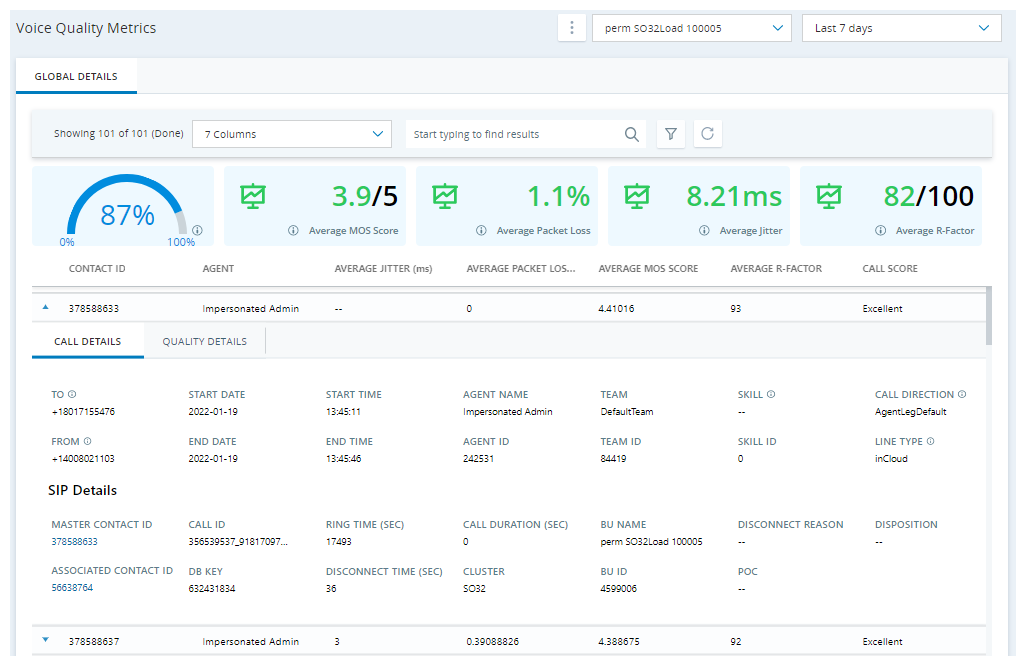
You can view information about the quality of voice calls in your tenant High-level organizational grouping used to manage technical support, billing, and global settings for your CXone environment or those of your customers. You can select the date range you want to view calls for.
The Voice Quality Metrics page in PartnerHub shows you data on the average call quality, MOS score, amount of jitter, and packet loss for the selected Protocol used for signaling and controlling multimedia communication sessions such as voice and video calls. details, and quality details.
 Learn more about the fields on this page
| Field | Details |
|---|---|
| Agent |
The name of the agent who handled the call. You can filter calls based on agent name. You can have this field display as a column on the Voice Quality Metrics page. |
| Agent Name |
The name of the agent who handled the call. You can filter calls based on agent name. This field is located on the Call Details tab. |
| Agent ID |
The ID of the agent involved in the call. You can filter calls based on agent ID. You can have this field display as a column on the Voice Quality Metrics page. This field is located on the Call Details tab. |
| Associated Contact ID |
The contact ID assigned to the call after a transfer. It remains associated with the call's previous contact ID (the Master Contact ID). This field is located on the Call Details tab. You can click this field to view the SIP ladder |
|
Average Jitter (ms) |
The average amount of jitter during the call, in milliseconds. You can filter calls based on average jitter. Use the sliders to select the minimum and maximum amounts of jitter that you want to use as a filter. You can have this field display as a column on the Voice Quality Metrics page. This field is located on the Quality Details tab. |
| Average MOS Score |
The average Mean Opinion Score (MOS) of the call. You can filter calls based on average MOS score. Use the sliders to select the minimum and maximum average MOS score that you want to use as a filter. You can have this field display as a column on the Voice Quality Metrics page. This field is located on the Quality Details tab. |
| Average Packet Loss (%) |
The average percentage of packet loss during the call You can filter calls based on average package loss. Use the sliders to select the minimum and maximum amounts of packet loss that you want to use as a filter. You can have this field display as a column on the Voice Quality Metrics page. This field is located on the Quality Details tab. |
| Average R-Factor |
The average R-factor for the call. You can filter calls based on average R-factor. Use the sliders to select the minimum and maximum R-factor score that you want to use as a filter. You can have this field display as a column on the Voice Quality Metrics page. This field is located on the Quality Details tab. |
| BU ID |
The ID number of the This field is located on the Call Details tab. |
| BU Name |
The name of the This field is located on the Call Details tab. |
| Business Unit |
The You can have this field display as a column on the Voice Quality Metrics page. |
| Call Duration |
The length of the call (in seconds). This field is located on the Call Details tab. |
| Call ID |
The ID number of the call. This field is located on the Call Details tab. |
| Call Score |
The score of the call, which is calculated based on its Mean Opinion Score (MOS). You can filter calls based on call score. You can have this field display as a column on the Voice Quality Metrics page. This field is located on the Quality Details tab. |
| Cluster |
The cluster ID where the This field is located on the Call Details tab. |
| Contact ID |
The ID of the customer involved in the call. You can filter calls based on contact ID. You can have this field display as a column on the Voice Quality Metrics page. This field is located on the Quality Details tab. |
| DB Key |
A unique call identifier. All correlated contact IDs share the same DB key. You can filter calls based on the DB key. You can have this field display as a column on the Voice Quality Metrics page. This field is located on the Call Details tab. |
| Direction |
The call type, which can indicate the direction of the call (inbound/outbound). For example, InboundToAgent, ManualAgentOutbound, or BlindXfer. You can filter calls based on call direction. You can have this field display as a column on the Voice Quality Metrics page. This field is located on the Call Details tab. |
| Disconnect Reason |
The reason the call disconnected. This field is located on the Call Details tab. |
| Disconnect Time (sec) |
The amount of time (in seconds) that it took the call to disconnect after the customer or agent hung up. This field is located on the Call Details tab. |
| Disposition |
The disposition This field is located on the Call Details tab. |
| End Date |
The date the call ended. This field is located on the Call Details tab. |
| End Time |
The time that the call ended (in HH:MM:SS format). You can have this field display as a column on the Voice Quality Metrics page. This field is located on the Call Details tab. |
| From |
The phone number from which the call originated. You can filter calls based on the originator of the call. You can have this field display as a column on the Voice Quality Metrics page. This field is located on the Call Details tab. |
| Jitter |
The amount of jitter for the call (in the CXone network or the external network). This field is located on the Quality Details tab. |
| Key |
A unique call identifier. All correlated contact IDs share the same key. You can have this field display as a column on the Voice Quality Metrics page. This field is located on the Call Details tab. |
| Master Contact ID |
The first contact ID associated with a call. If the agent transfers the call, a second contact ID is assigned to the call (called the Associated Contact ID). If the second agent transfers the call, then the Associated Contact ID becomes a new Master Contact ID. The new Master Contact ID has a new Associated Contact ID, which correlates to the third transfer destination. You can filter calls based on the Master Contact ID. You can have this field display as a column on the Voice Quality Metrics page. This field is located on the Call Details tab. You can click this option to view the SIP ladder |
| MOS |
The Mean Opinion Score (MOS) for the call (in the CXone network or the external network). This field is located on the Quality Details tab. |
| Packet Loss |
The amount of packet loss for the call (in the CXone network or the external network). This field is located on the Quality Details tab. |
| R-Factor |
The R-factor score for the call (in the CXone network or the external network). This field is located on the Quality Details tab. |
| Ring Time |
The amount of time the call rang before it was answered. This field is located on the Call Details tab. |
| Score |
The call quality score for this call (in the CXone network or the external network). You can filter calls based on the call score. This field is located on the Quality Details tab. |
| Skill |
The name of the You can filter calls based on the skill name. You can have this field display as a column on the Voice Quality Metrics page. This field is located on the Call Details tab. |
| Skill ID |
The ID of the You can filter calls based on the skill ID. You can have this field display as a column on the Voice Quality Metrics page. This field is located on the Call Details tab. |
| Start Date |
The date the call started. This field is located on the Call Details tab. |
| Start Time |
The time that the call started (in HH:MM:SS format). You can have this field display as a column on the Voice Quality Metrics page. This field is located on the Call Details tab. |
| Team |
The name of the team the agent is part of. You can filter calls based on the team name. You can have this field display as a column on the Voice Quality Metrics page. This field is located on the Call Details tab. |
| Team ID |
The ID of the team the agent is part of. You can filter calls based on the team ID. You can have this field display as a column on the Voice Quality Metrics page. This field is located on the Call Details tab. |
| To |
The destination phone number that was dialed. You can filter calls based on the call destination number. You can have this field display as a column on the Voice Quality Metrics page. This field is located on the Call Details tab. |
- Click the app selector
 and select PartnerHub.
 -
Click Voice Quality Metrics.
- From the drop-down list on the left at the top of the page, select the High-level organizational grouping used to manage technical support, billing, and global settings for your CXone environment
- From the drop-down list on the right at the top of the page, select the date range of the calls you want to view. If you view data from the last 24 hours, the data you see will be from the current time back 24 hours.
- On this page, you can:
- Export Data and Hide Tiles—Click the menu
 and click Hide Tiles to customize how many tiles show at the top. Click Export CSV to export data.
 - Customize Columns—To customize the columns that appear on the Voice Quality Metrics page, click [#] Columns and click the option for each column you want to add or remove from the page. If you want, you can also type in a word to find specific results.
- Filter Calls Shown—Click filter
 and select the options for the calls you want to see. Click the filter icon again to hide the filters panel. The page saves your filter and sort options when you refresh the page. If you leave the page and come back later, however, you need to make your selections again. For more details on filter options, view the above Learn more about the fields on this page drop-down.
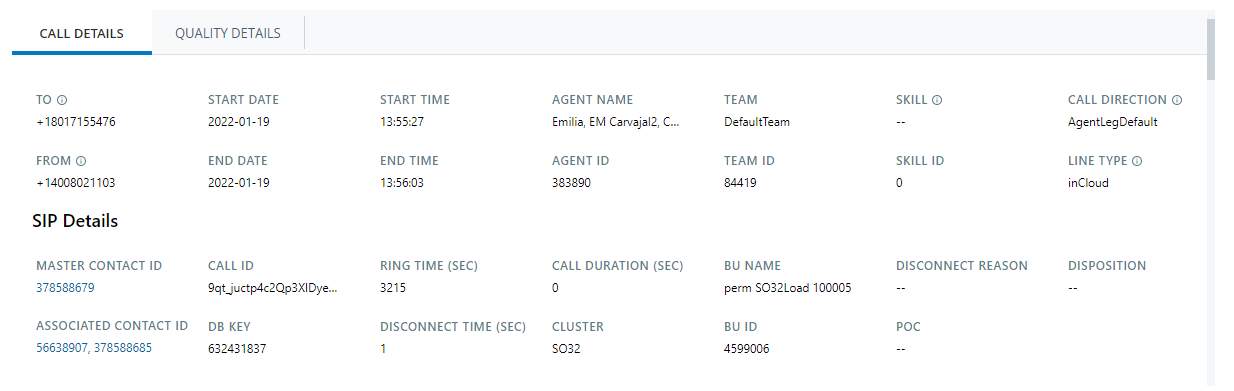
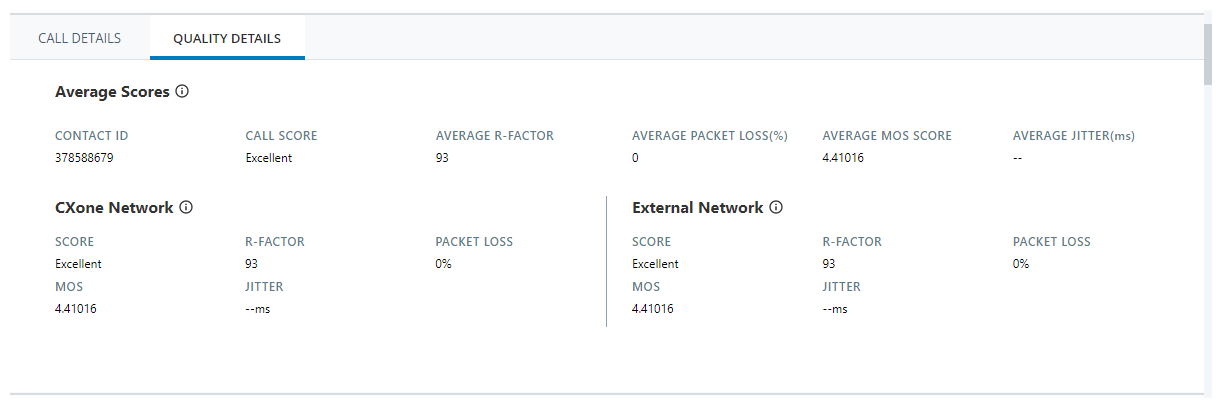
 - View Individual Call Details—Click any row to expand it. You can see information on two tabs:
Call Details Tab—This tab displays information such as the start and end date and time of the call and the agent's name, ID, and team. It also contains SIP details such as master contact ID and any associated contact IDs. Finally, it shows the call ID, the ring time, and the call duration.
Quality Details Tab—This tab displays call quality information, including the call score, average R-factor, packet loss, MOS score, and jitter. You can also see information about the internal CXone network and the external network.
- View a Call's CXone Voice Diagnostics—Click the Call Details tab for a call and in the SIP Details section, click the Master Contact ID or Associated Contact ID and select View CXone Voice Diagnostics. CXone Voice Diagnostics is an optional feature. Ask your CXone Account Representative for more information.
- View a Call's Quality Metrics—Click the Call Details tab for a call and in the SIP Details section, click the Master Contact ID or Associated Contact ID and select View Quality Metrics.
- Export Data and Hide Tiles—Click the menu