

Requirements
Your Zendesk system must meet the following requirements to integrate with the agent application:
- Your system must have sufficient Zendesk Talk Partner Edition licenses - 1 license for each user with access to the integrated agent.
- A dedicated administrator service account (API user), which you can identify on the Company Settings page in the CXone Console, explained in the following section.
- API password and token access enabled in the Zendesk platform.
- Accessibility via TCP port 443 (https) to the NICE CXone Cloud.
Connect Zendesk to your CXone Environment
This task is performed on the Company Settings page in the CXone Console.
- Navigate to the Company Settings page of the CXone Console.
- Click the CRM tab.
- Select Zendesk in the first drop-down.
- Enter the Hostname for your Zendesk instance.
- Enter the Username and Password for the designated administrator service user account.
- Click Save.
- Click the Phone System tab, which is within the Company Settings page.
- If NICE inContact is not already selected in the first drop-down, select it.
- Select
- Enter the Access Key ID that your implementation representative provided you.
- Enter the Access Secret that your implementation representative provided you.
- Enter the appropriate URL for your Authentication Host. Contact your CXone Account Representative for more information. You must enter one of the following URLs based on your region:
- na1.nice-incontact.com
- eu1.niceincontact.com
- au1.nice-incontact.com
uk1.niceincontact.com
ca1.niceincontact.com
- Click Save.
Install the Application
Zendesk provides a Marketplace from which you can install the agent application. After installing the application, the app will appear under the Currently Installed category of the My Apps page in Zendesk.
 View My Apps page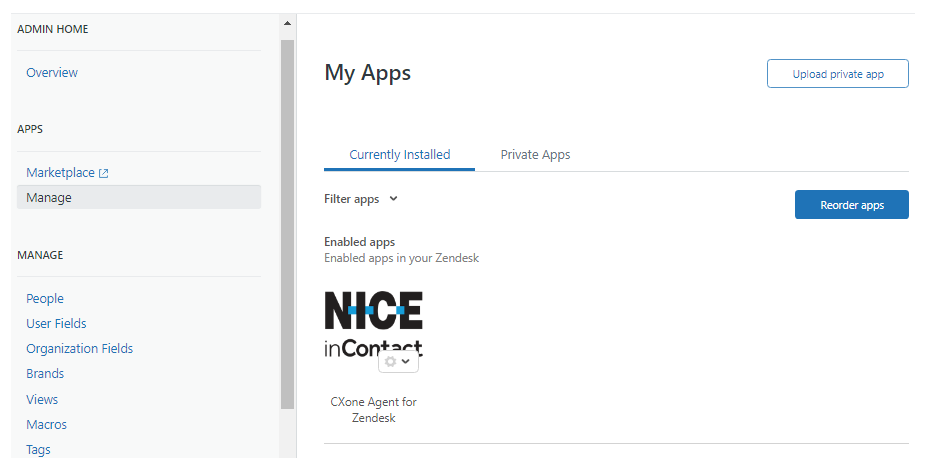
- In the Zendesk platform, open the Admin menu by clicking the cog in the sidebar.
- Click Marketplace under the APPS category to open the Zendesk Marketplace.
- Search for NICE CXone in the search bar.
- Click Agent for Zendesk to open the application's details page.
- Click Install.
Configure Application Settings
- Navigate to the My Apps page in Zendesk (Admin cog in the sidebar > Manage). You will see CXone Agent for Zendesk under the Currently Installed category.
- Click the settings down-chevron on the app icon to expand the settings options and select Change Settings.
- Enter a Title for the agent application, which appears in the header of the application window.
- Enter the Application URL, which is https://app-crm.niceincontact.com/zendesk.html. The NICE CXone implementation team will provide you with this URL.
- You can enter the Zendesk password to use Zendesk's Talk API suite.
- You can determine which user roles have access to the app by selecting the Enable role restrictions? radio button and selecting from the drop-down which roles you want to have access.
- You can determine which groups have access to the app by selecting the Enable group restrictions? radio button and selecting from the drop-down which roles you want to have access.
- Click Update.
Any social media, social networking, and other technology sites, applications, or products referenced in this topic are the property of their respective owners.